On this page
- How to get your Google review link
- How to get your Google review QR code
- How to make a QR code for Google reviews if Google's option is missing
- Where to use your Google review link
- Google's rules when you share your review link
- What the FTC review rule adds
- How to track whether your review link is working
- Where your review link fits in local search
Key takeaways
- Google's help page gives the steps: open your Business Profile, select Read reviews, then Get more reviews, and copy the link or save the QR code.
- As of November 2026, Google says review QR codes can only be generated in a computer browser, so grab the link and the code on a computer once and save both.
- If Google's QR code is missing, put your review link behind a simple page on your own website, then use Chrome's Create QR code tool to make a code you control.
- Google bans review incentives, asking only happy customers, pressure on the premises, requests for specific wording, and reviews from staff or family, and it can restrict profiles over incentivized or fake reviews.
- Track asks, new reviews, and channels in a simple spreadsheet so you can see which way of asking actually brings in reviews.
Your Google review link is a web address that takes customers to the review form for your Business Profile, so they can leave a review in a few taps instead of searching for you. Google also gives you a matching QR code for print. Here is how to get both, where to use them, how to make a QR code if Google's is missing, and the Google and FTC rules for asking. Steps reflect Google's help pages as checked in November 2026. For the bigger picture, see our guide to Google reviews for Austin businesses.
How to get your Google review link
Open your Business Profile, select Read reviews, then Get more reviews, and select Copy. That is the path on Google's help page for review links and QR codes, which calls it a link to request reviews. Many owners search for a "Google reviews link," and it is the same thing.
- Sign in first. Google's page on finding your profile says you must be signed in to the Google Account tied to it. If you see your listing but no owner tools, you may be signed in to the wrong account.
- Open your profile. On Google Search, search for your business name and city, or for my business. On Google Maps, search for your business name and city. In the Google Maps app, tap Business at the bottom right.
- Open the review tools. Select Read reviews, then Get more reviews.
- Copy the link. Select Copy and paste it into a note you can find again. Google's page says you can also share the link or QR code directly from there.
Test the link on your own phone before you send it, and confirm it opens your business, not a similarly named one nearby. Google changes its menus from time to time, so if your labels differ, look in the reviews area of your profile.
Each location with its own profile needs its own link, so a company with offices in Cedar Park and Pflugerville should label both clearly.
How to get your Google review QR code
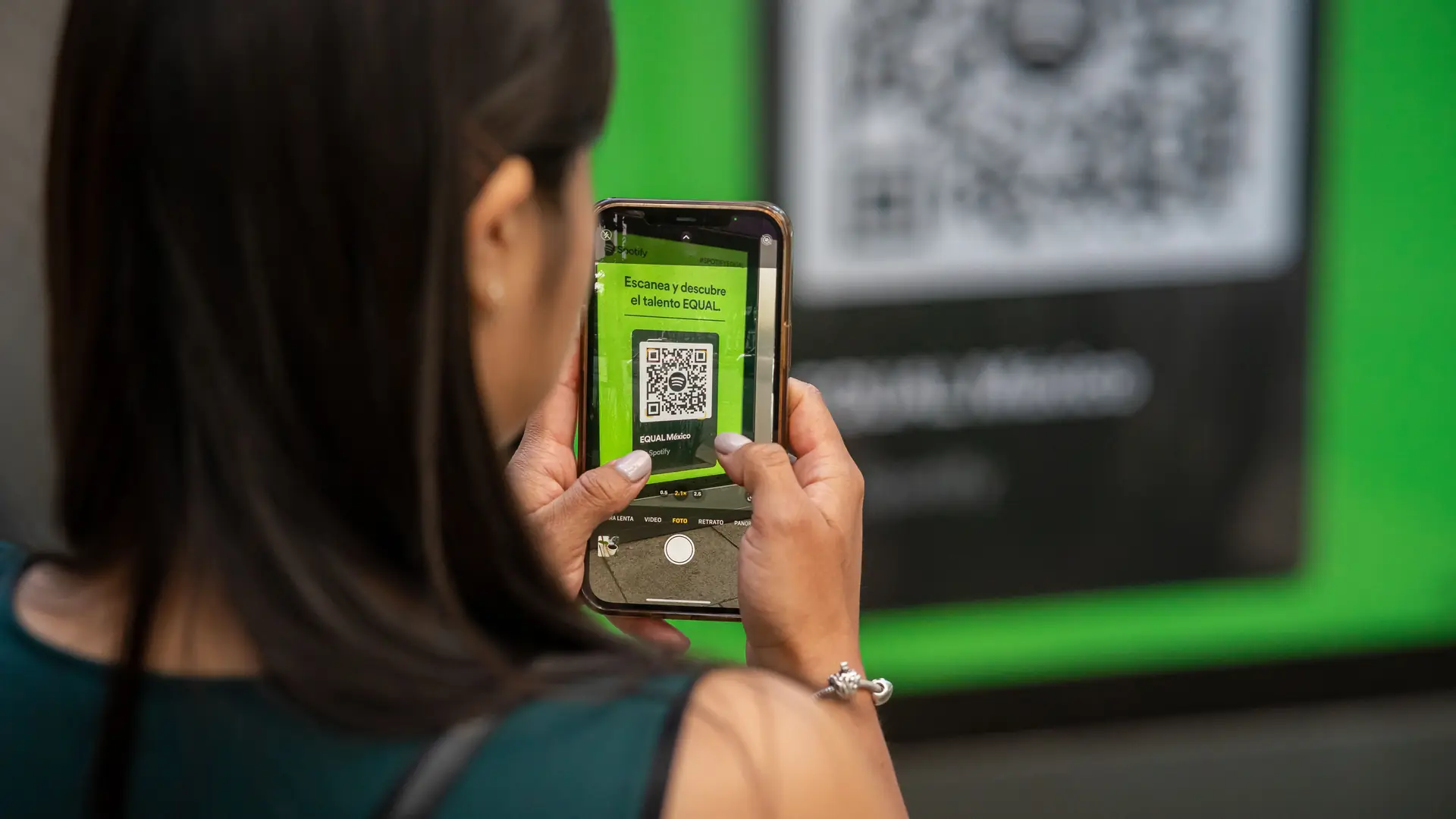
The Google review QR code sits in the same Get more reviews window as the link. As of November 2026, Google's help page says review QR codes can only be generated in a computer browser, not on mobile devices.
- On a computer, open Get more reviews as described above.
- Right-click the QR code.
- Select Save image as and give the file a clear name, such as the location.
- Add the image to your print design, and print one proof first.
- Test the proof. Scan the printed sample with an iPhone and an Android phone before you order a batch.
- Say what it does. Add a short line such as "Scan to review us on Google."
- Give it room. Print it large enough to scan from where customers stand or sit, away from folds and glare.
How to make a QR code for Google reviews if Google's option is missing
Copy your review link, then turn it into a QR code yourself. Google Chrome on a computer has a built-in tool that makes a code for any page.
The sturdiest setup is a simple page on your own website, such as yourwebsite.com/review, with one big button that opens your review link. If the link ever needs to change, you update one button and every printed card still works.
Chrome's help page on sharing tabs gives the steps: go to the page you want to share, select More, then Cast, save, and share, then Create QR code, and select Download. Open your review page, or the review link itself, in Chrome and follow those steps. Then scan the downloaded code with your phone to confirm it opens your review form before you print anything.
Be careful with free QR sites. Some send scans through their own short links first, and those codes can stop working if the service changes its terms or closes your account. Check that the code points straight to your review link or your own website.
Where to use your Google review link
Use the link soon after the job or visit, in a place the customer already is. Google's help page suggests receipts, thank-you emails, the end of a chat, and a printed QR code in your store, and it also mentions email, WhatsApp messages, and Facebook posts.
- Text after the job. For plumbers, HVAC techs, and other service businesses, a short same-day text is usually the simplest ask.
- Emails and signatures. Put the link near the top of thank-you emails, and add a "Review us on Google" line to the signatures of staff who talk to customers.
- Receipts and invoices. Print the QR code on paper receipts, or add the link to emailed invoices.
- Your website. Add a review button to your contact page or to the page customers see after they book or pay.
- In person. Place the QR code by the register, on table cards, or on a small card left with the invoice.
Two hypothetical Austin examples: a Round Rock plumber could text each customer the evening after the job: "Thanks for having us out today. If you have a minute, an honest Google review helps your neighbors find us: [link]." A South Congress cafe could put a small QR card by the register and on each table, and let guests scan it on their own time. Service trades can find more on our SEO for Austin home service companies page.
One thing to expect: Google's tips page on getting more reviews says customers must be signed in to a Google Account to leave a review, and that they can create one with an email address that is not Gmail.
A review link is not a link to one review
Your review link collects new reviews. To share one specific review, say on your website, Google's page on managing reviews describes a different route: search for your business on Google Maps, select Reviews, select More next to the review, then Share review and Send a link, and copy it.
Google's rules when you share your review link
You can ask any real customer for an honest review. Google's Maps content policy says merchants may not pay for reviews, ask only happy customers, pressure people on the premises, or ask for specific wording.
- No incentives. No payment, discounts, or free goods or services in exchange for a review, or for changing or removing a negative one. "Ten percent off for a review" breaks this rule even if the review is honest.
- No review gating. Google does not allow merchants to discourage negative reviews or selectively ask for positive ones. A quick survey that passes only five-star customers on to your Google link does exactly that.
- No pressure on the premises. Google says merchants should not require or pressure customers to leave a review while on site. A QR code on the counter is on Google's own list of suggestions, but handing someone a tablet and waiting while they type can easily feel like pressure.
- No scripts or quotas. Do not ask customers to include certain words, such as a keyword or a staff member's name, and do not give staff a target number of reviews.
- No insider reviews. Google treats reviews from current or former employees, contractors, relatives, and competitors as conflicts of interest. Do not send the link to your team or your family.
Google's page on Business Profile restrictions says that when an owner breaks its fake engagement policy, Google may block new reviews or unpublish existing ones for a set period, or show customers a warning that fake reviews were removed. Google says it emails owners before applying a restriction, and owners can appeal.
What the FTC review rule adds
The FTC's Consumer Reviews and Testimonials Rule, in effect since October 21, 2024, targets fake reviews. It also bans offering payment or other incentives for reviews on the condition that they express a particular sentiment, so paying for five-star reviews is out. The FTC says courts can impose civil penalties for knowing violations.
The FTC's questions and answers on the rule add three points for anyone sharing a review link:
- Incentives. The rule does not ban incentives that are not tied to a particular sentiment. Google bans them all, so on Google, skip incentives completely.
- Asking only happy customers. The FTC says the rule has no specific ban on this, but the practice could violate the FTC Act. Google bans it outright.
- Family members. The FTC says a small business owner can ask family members for reviews, as long as they clearly and conspicuously disclose the relationship. Google treats family reviews as a conflict of interest, so on Google the answer is still no.
This is a summary, not legal advice. If a review program feels like a gray area, ask a lawyer first.
 Related readingGoogle reviews for Austin businesses: how to get, reply and recover
How to track whether your review link is working
Track three things each week: how many customers you asked, how many new Google reviews came in, and which channel you used to ask. A spreadsheet is enough.
Log each ask with the date, the channel (text, email, receipt, or printed code), and a job number. Once a week, open Read reviews and note the new ones. After a month or two, compare channels. If same-evening texts bring in more reviews than next-day emails, put your effort there. If you use a review page on your website, give each placement its own page, such as one for the counter card and one for invoices, and your website analytics will show which one gets visits.
Keep the pace steady, too. Google's policy lists unusual volumes or patterns of reviews as a sign of possible rating manipulation, which is one more reason to ask every customer as a routine rather than in one big push.
Where your review link fits in local search
Reviews are only one part of how your business shows up on Google Maps. Your categories, hours, photos, and website shape what customers see too, and our Austin Google Maps ranking checklist walks through them. When a fair but critical review arrives, reply calmly, and read how to remove a Google review to see which reviews Google will take down and which it will not. Review handling is also part of our Google Maps SEO work.
Want a second set of eyes on your Business Profile and the way you ask for reviews? Our free audit is reviewed by a person, and you hear back within one business day. Ask for a free audit.
Written by the Best SEO in Austin team
We help Austin service businesses, clinics, and firms get recommended by AI and found on Google Maps. Terms are month to month, and you own every account.